DoNotDisturb
Physical access (or "Evil Maid") attacks are some of the most insidious threats faced, especially by those of us who travel with our beloved MacBooks.
Download
One of the easiest ways to break into a computer is with physical access. Most of us have left our laptops unattended at some point, in a hotel room or shared coworking space. Wouldn't you want to know if someone tried to get in?
Curious about the inspiration behind DoNotDisturb? True story, it involved a Tinder date in Moscow... and a Russian "spy." Read more:
"This Ex-NSA Hacker's App Protects Your Mac From 'Evil Maid' Attacks".
"This Ex-NSA Hacker's App Protects Your Mac From 'Evil Maid' Attacks".
DoNotDisturb (DND) continually monitors your system for events that may indicate a precursor of "evil maid" attack. Specifically it watches for 'lid open' events.
If you've shut your laptop (and triggered sleep mode), most physical access attacks require the lid to be opened first. These could include:
- Logging in locally as root by exploiting a bug like '#iamroot'
- Logging in via credentials captured by a hidden camera
- Inserting a malicious device into a USB or Thunderbolt port
Most of these attacks require a closed laptop to be opened: either to wake it (allowing a malicious device to be processed) or for the attacker to interact with it directly.
DoNotDisturb, can also detect unauthorized access by less evil adversaries...such as one's mother:
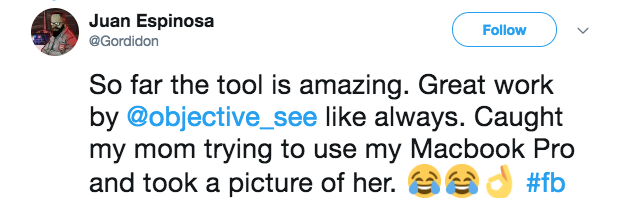
When an unauthorized lid-open event is detected, DND will log it locally. It can also be configured to:
- Display an alert on the device
- Send a remote alert to a registered mobile device
- Execute a custom action (e.g. run a script)
Installation
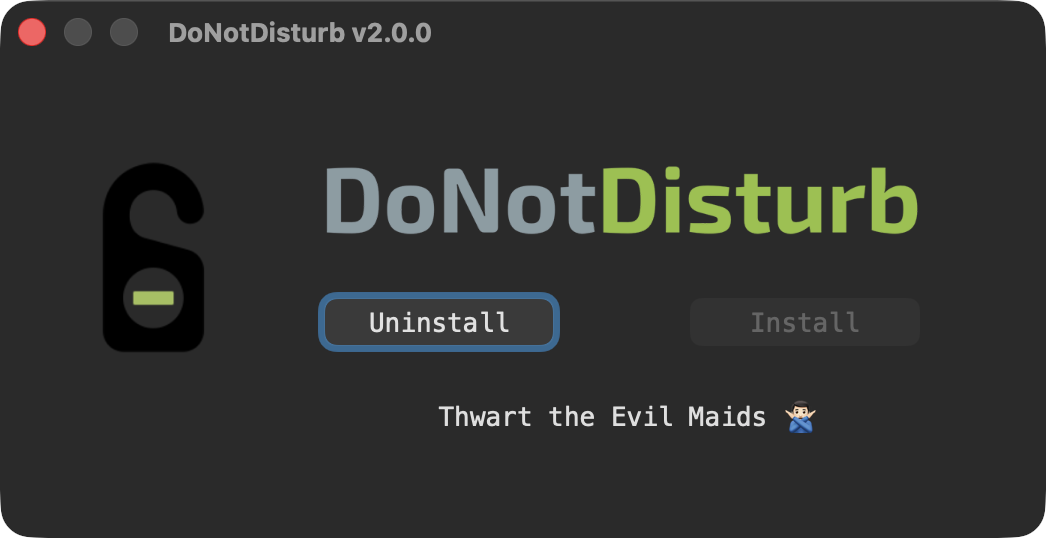
To install DoNotDisturb, first download the zip archive containing the installer application. Depending on your browser, you may need to manually unzip the application by double-clicking on the zipped archive.
Then, simply double-click on 'DoNotDisturb Installer.app'. Click 'Install' to install the tool. A password is required, as DoNotDisturb installs a persistent launch daemon in order to provide constant monitoring and protection.
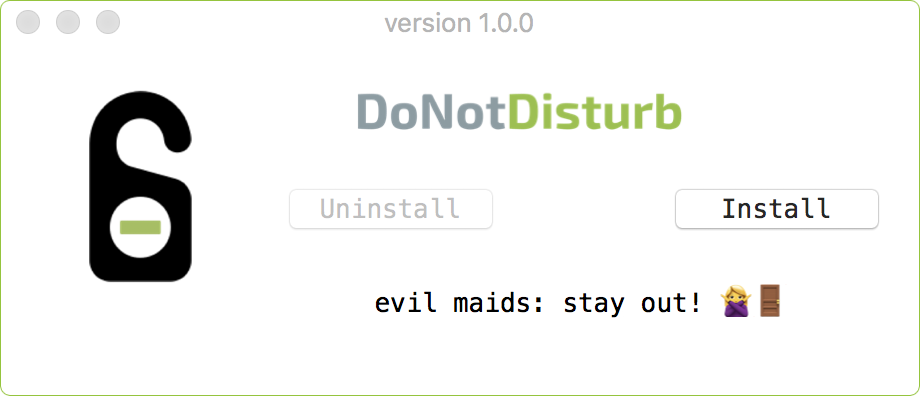
During installation, a few configuration screens will guide you through setup, including granting "Full Disk Access" (required by the Endpoint Security framework):
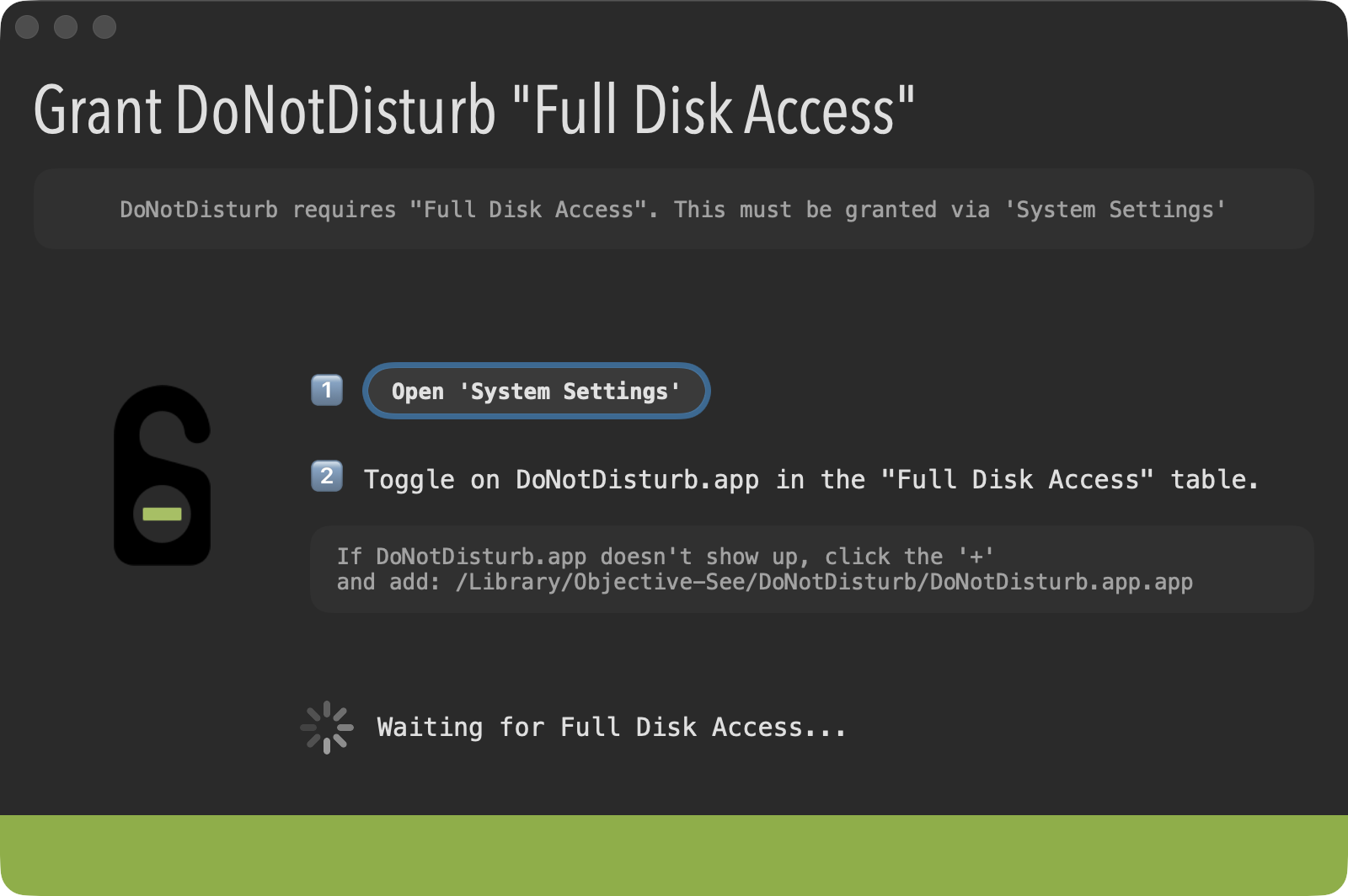
To grant the app "Full Disk Access":
- Click the 'Open System Setting' button
- In System Settings, in the "Full Disk Access" table, toggle the check box next to DoNotDisturb
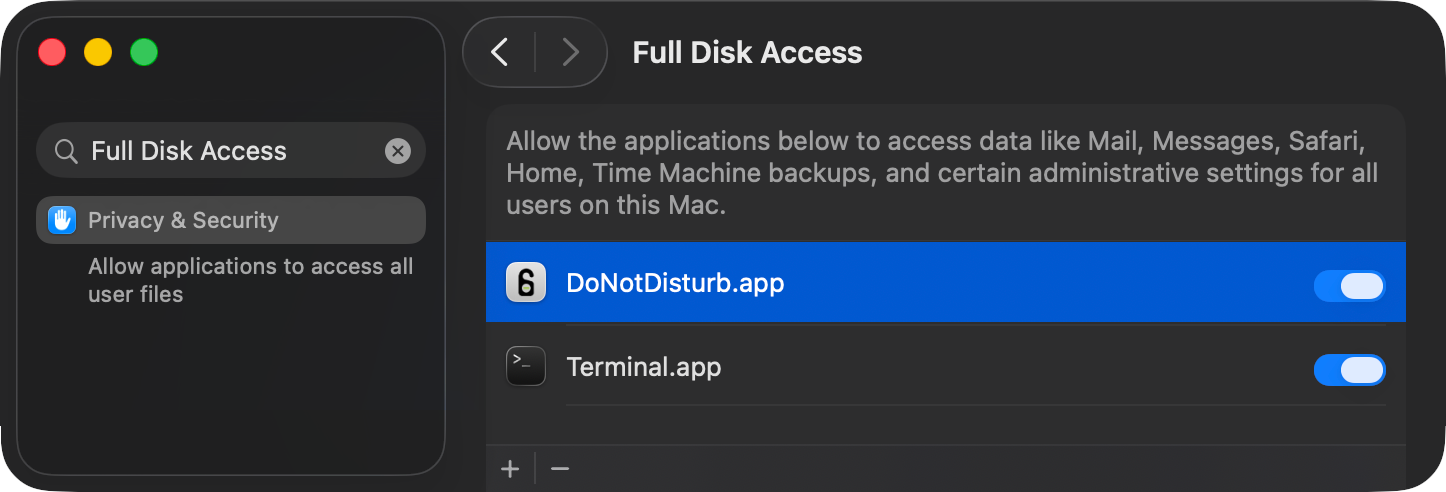
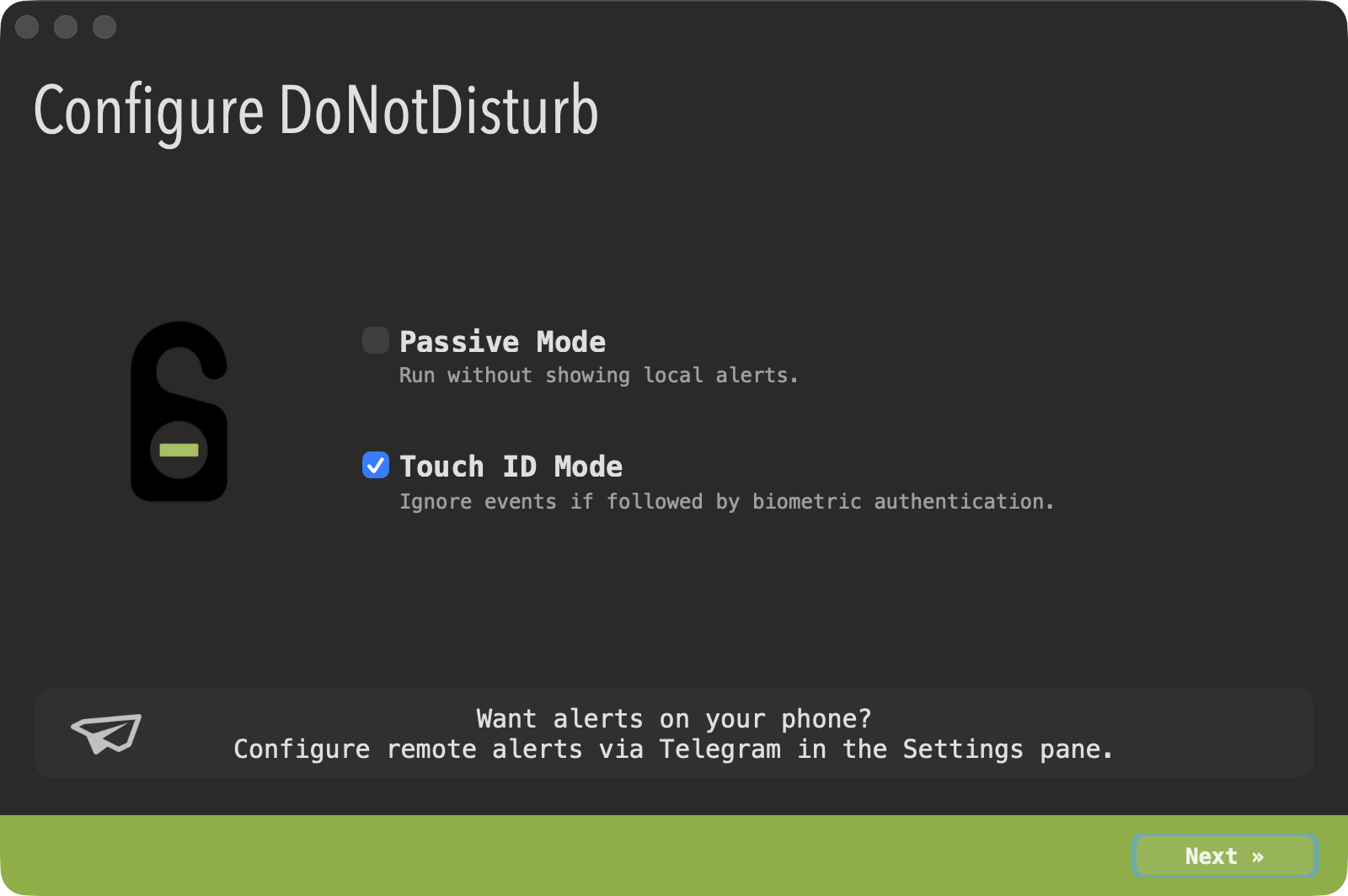
Once "Full Disk Access" has been granted, you'll be shown an initial configuration window:
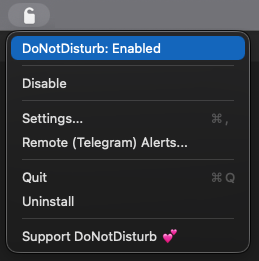
Once DND is installed, it will be running and is set to automatically start each time you log in. Unless configured to run without a status-bar icon, it will appear in the status bar:
Uninstallation
To uninstall DoNotDisturb, simply click "Uninstall" in app's status bar menu. This will launch the uninstaller. Click on 'Uninstall', enter your password, and DoNotDisturb will be fully uninstalled
Usage (Alerts)
Once DND is installed, it will alert you any time your laptop's lid is opened. Alerting is configurable in several ways: you can disable local alerts, set up remote alerts, and/or execute a custom action on each event. Since detection is based on lid-open events, the golden rule is simple: when you leave your laptop unattended, shut it!
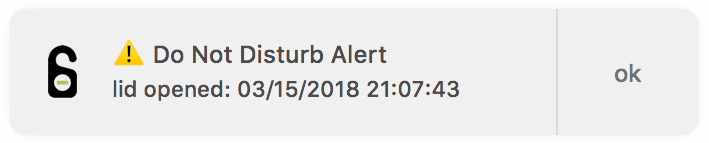
By design, DoNotDisturb alerts you any time your laptop's lid is opened — unless configured to ignore events following a trusted (Apple Watch or Touch ID) authentication. Note that if your MacBook is connected to an external display, alerts won't be delivered while that display is active and you remain logged in.
Also, DoNotDisturb uses macOS notifications to deliver local alerts. If you have notifications disabled (for example, via Focus Mode), local alerts may not appear right away.
Also, DoNotDisturb uses macOS notifications to deliver local alerts. If you have notifications disabled (for example, via Focus Mode), local alerts may not appear right away.
Usage (Settings)
DoNotDisturb can be accessed via it's status bar menu (or if you're running it in 'No Icon Mode', launching the it from /Applications).
Via this menu you canenable or disable, configure, exit, or uninstall the app. The Setting window allows you to configure the application in various ways.
Under the "Mode" tabs, you'll find various configuration options to control DoNotDisturb:
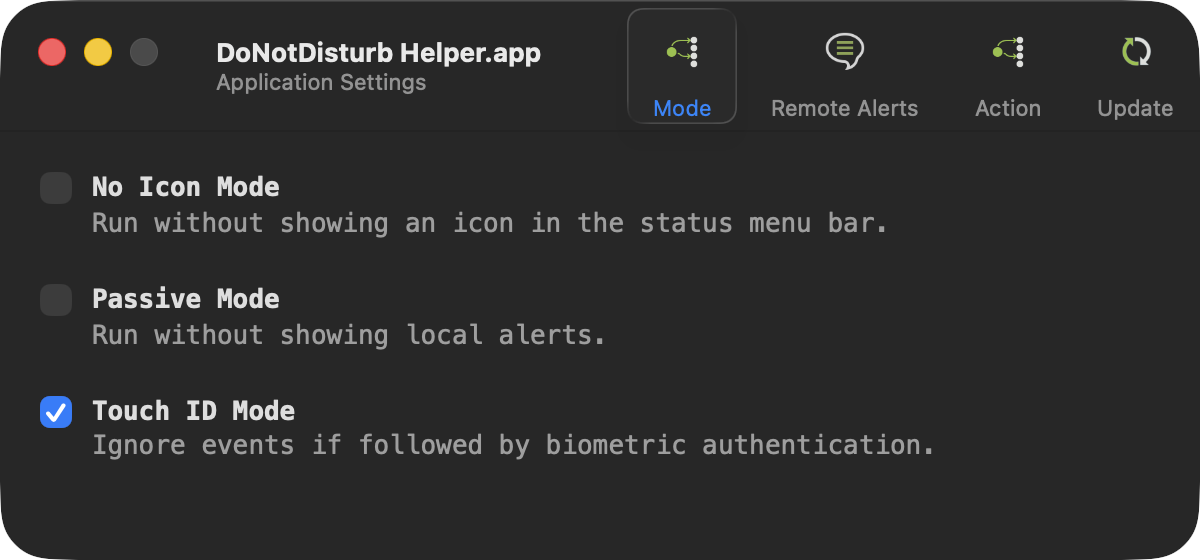
- "No Icon" mode:
The app will run without displaying an icon in the status bar. Select this if you don't want DND taking up space in your status bar. Once enabled, you'll have to use the main DND application (/Applications/DoNotDisturb Helper.app) to toggle it off or set other settings (as with no status bar icon, there of course is no status bar menu). - "Passive" mode:
The appl will run without displaying any local alerts. One might select this option to avoid alerting a a would-be-attacker. DND will still log any lid open events, and (if configured) will deliver alerts to a remote mobile device. - "Trusted Unlock" mode:
If your Mac has Touch ID, or you have an Apple Watch configured to unlock your Mac, you can enable Trusted Unlock. When active, the app ignores any lid-open event followed by successful authentication via Touch ID or Apple Watch within a short window — the idea being that you opened your laptop, not somebody else.
Why Telegram? Unlike other messaging apps such as iMessage or Signal, Telegram offers a stable, well-documented bot API that makes programmatic integration straightforward. It also has native apps on both iOS and Android, requires no proprietary SDK, and delivers messages reliably, making it the practical choice for cross-platform remote alerts.
Remote alerts are disabled by default. Here's how to enable them:
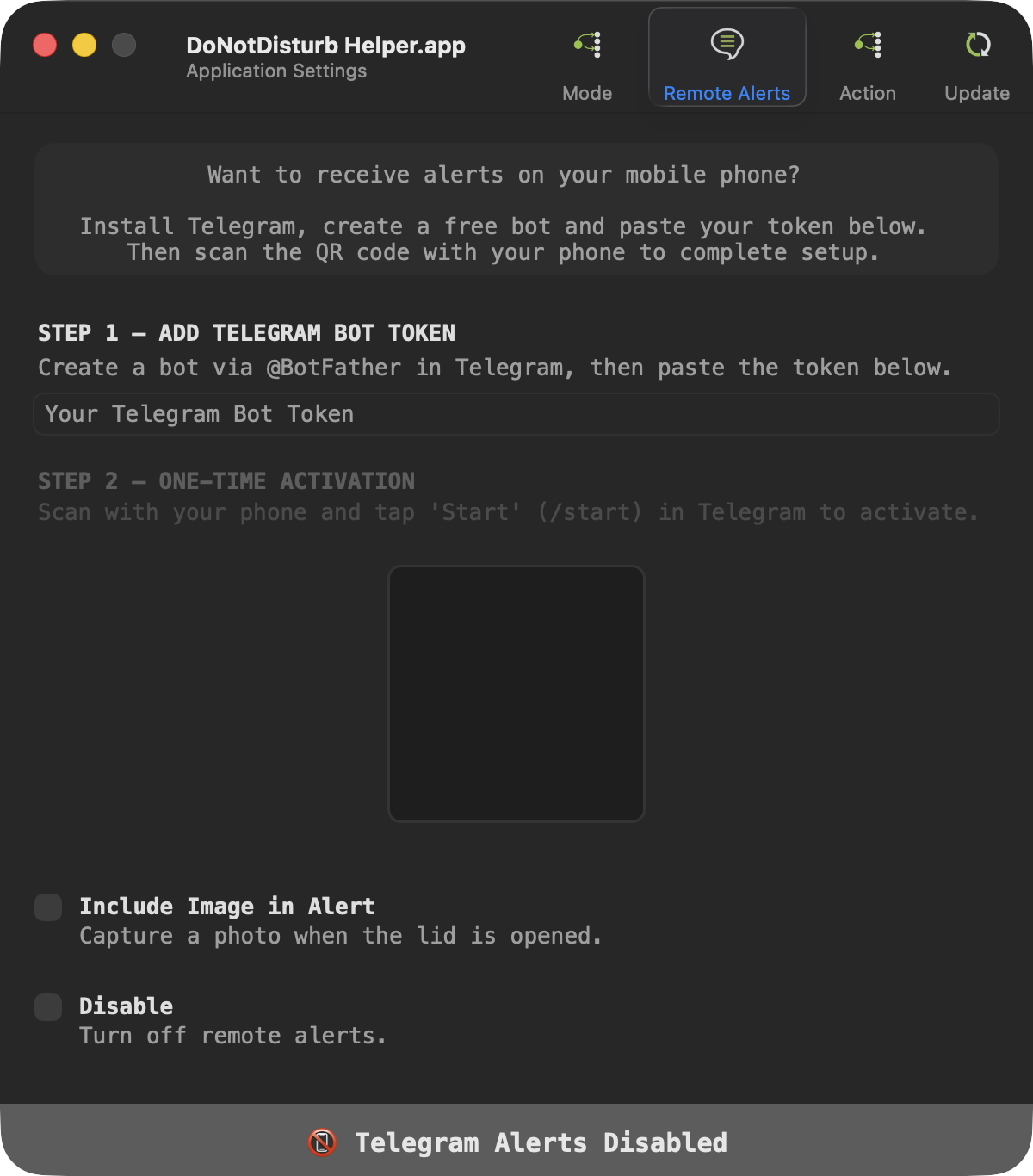
First, you'll need the API key for a Telegram Bot. You can create one via @BotFather in the Telegram app:
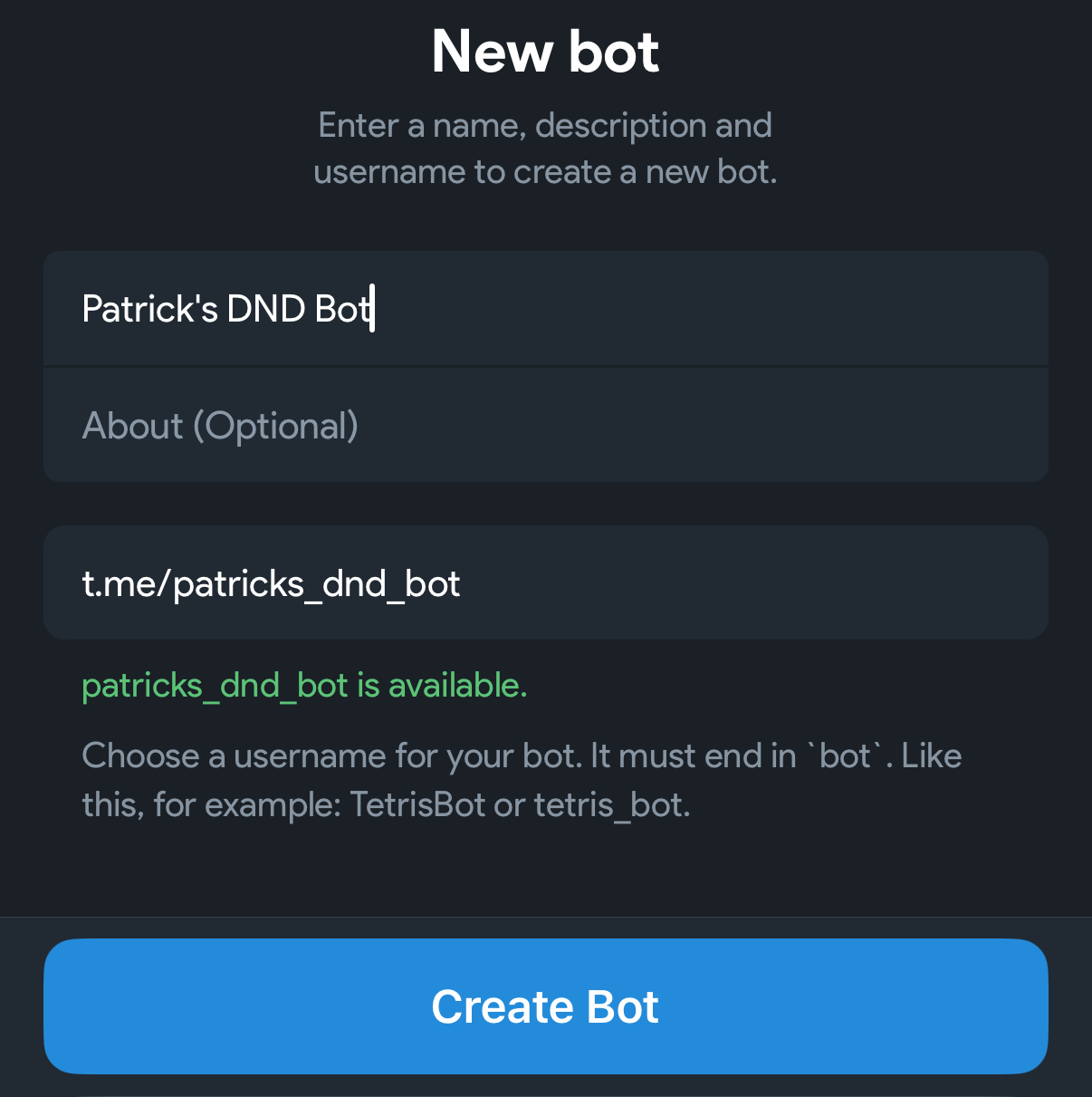
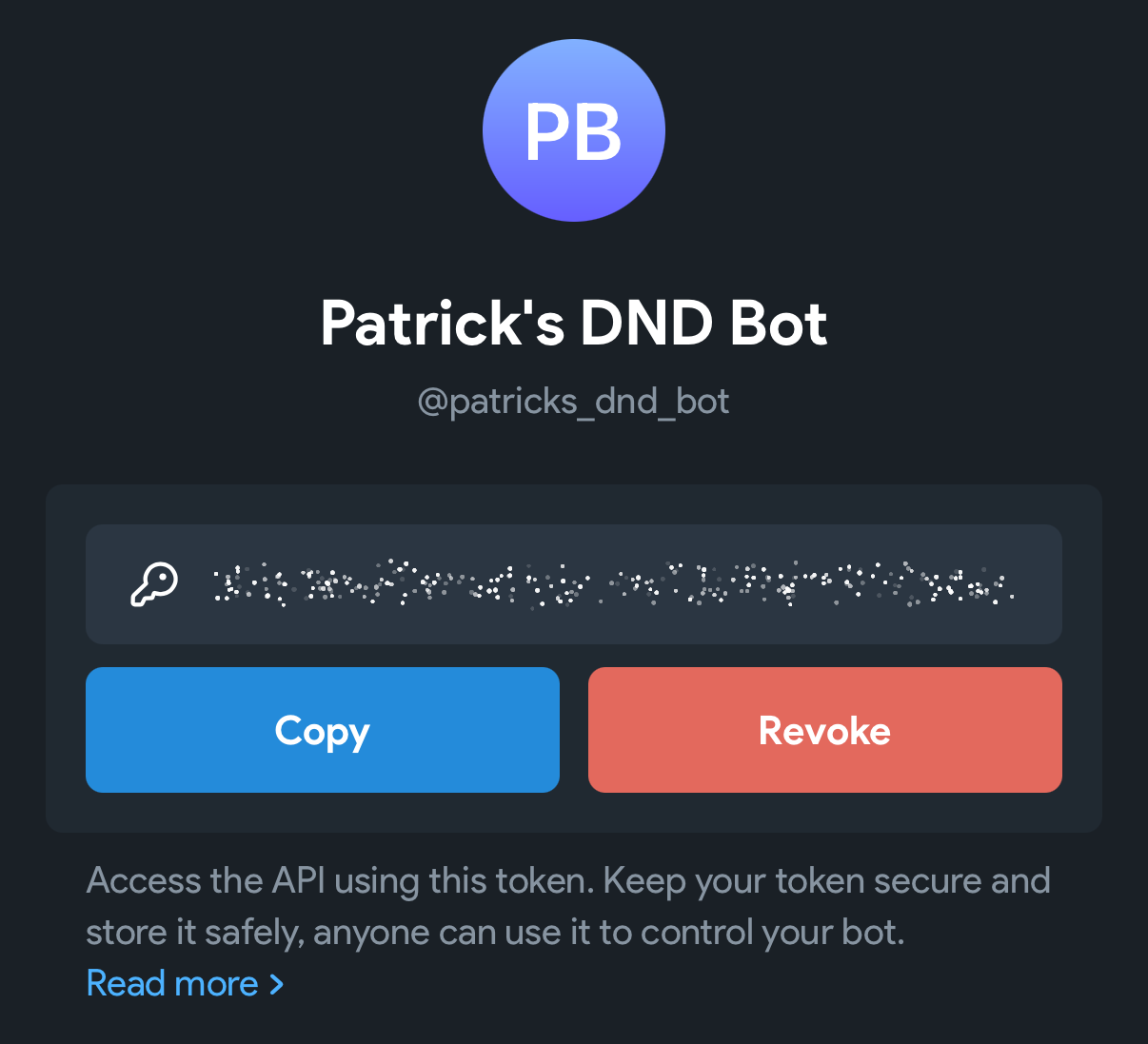
Once you've created a bot, copy its API key:
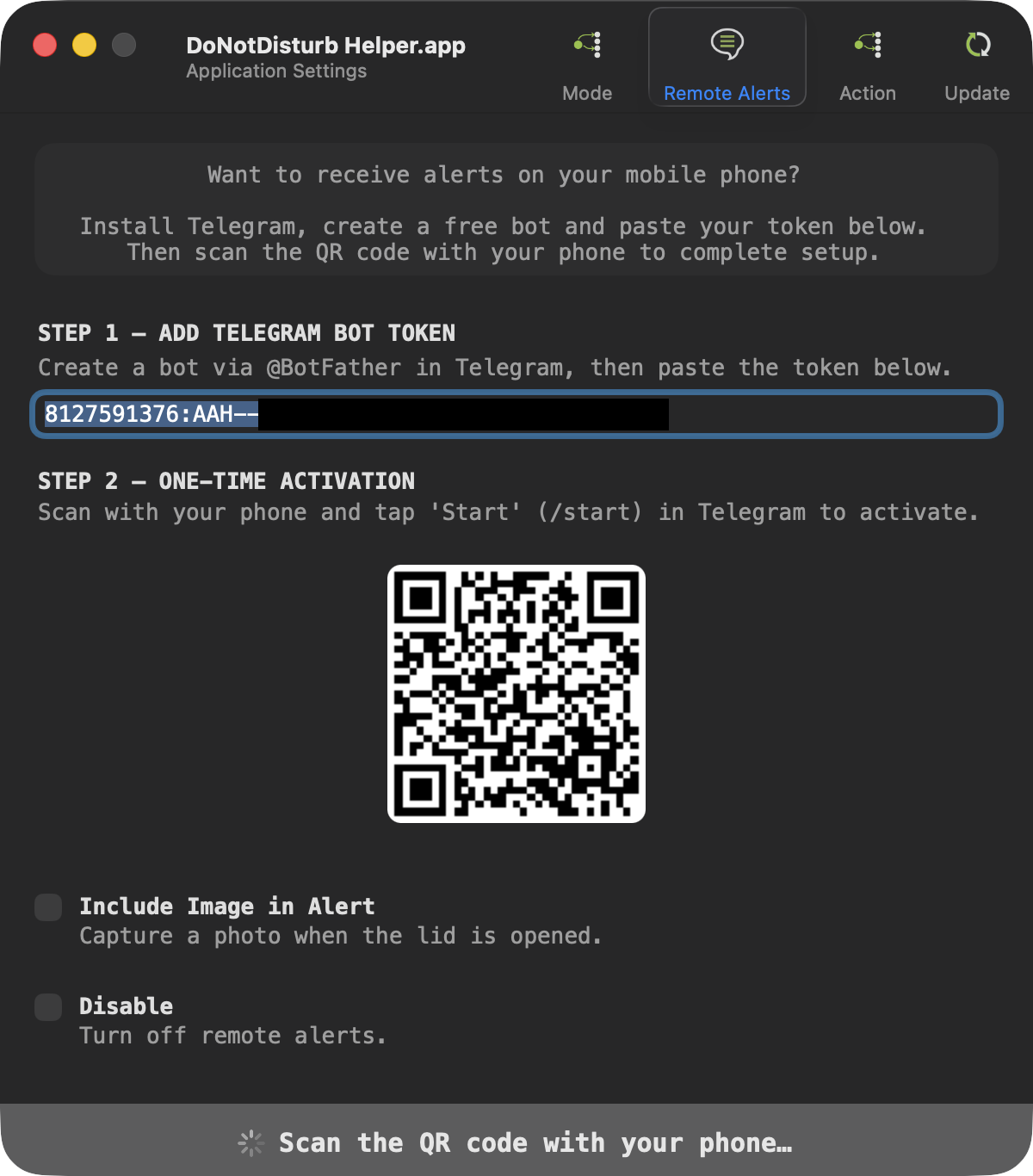
Paste it into DoNotDisturb, which will generate a QR code for you to scan with your mobile device:
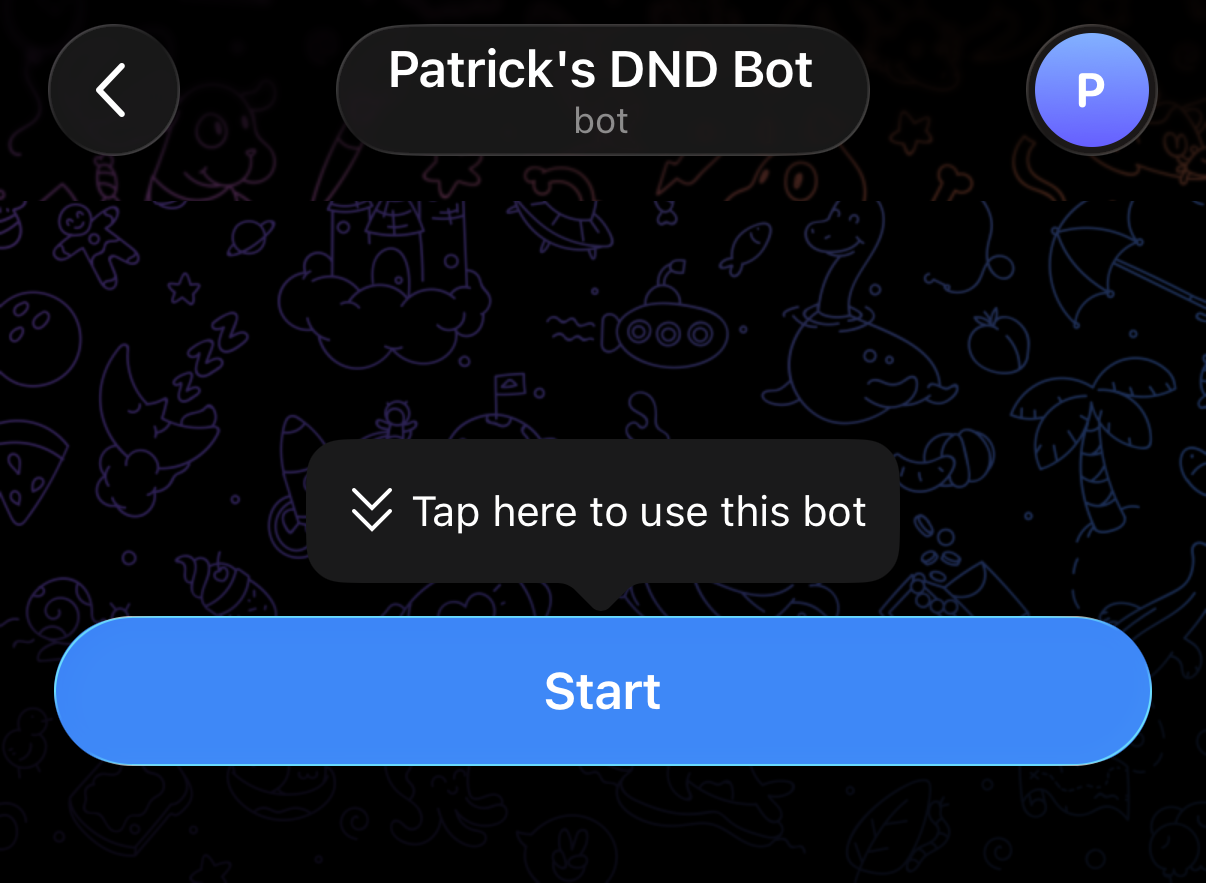
Scanning the code will open the Telegram app and load your bot's channel. Tap "Start" (/start) to activate it:
DoNotDisturb will detect the activation and display a confirmation alert, with the option to send a test message to your mobile device:
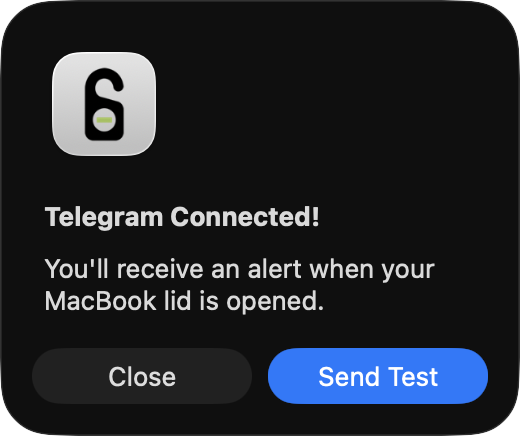
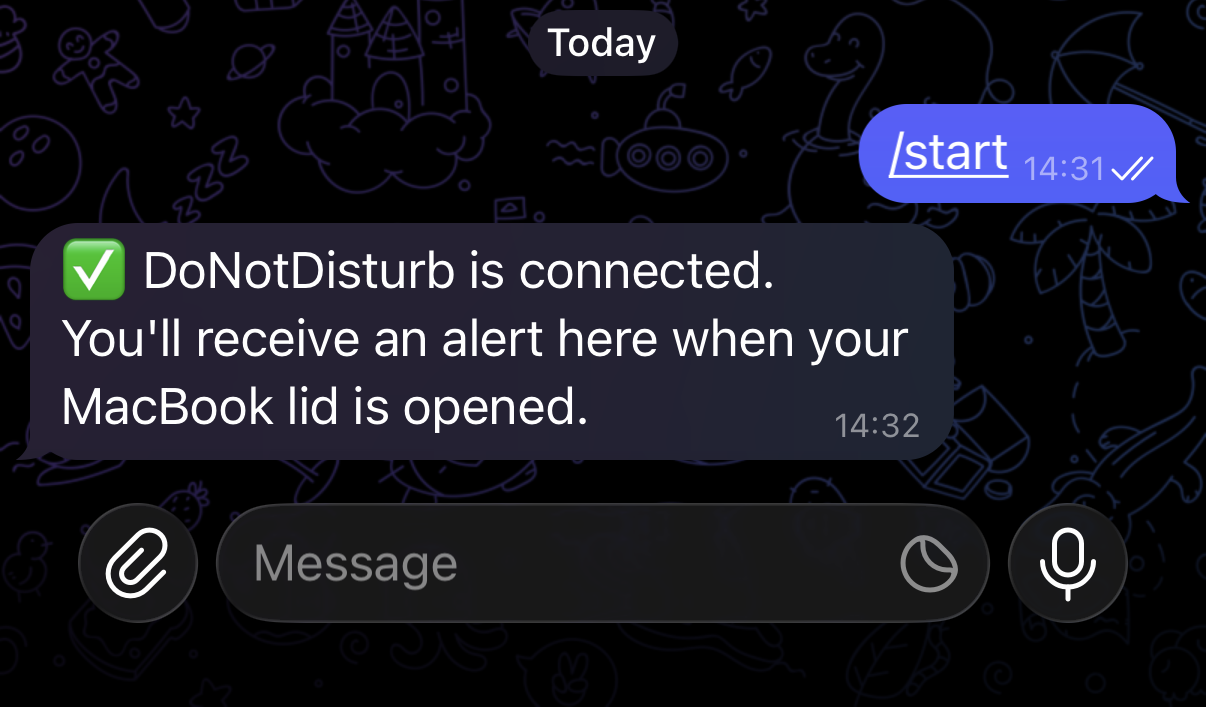
From here on, any time your MacBook's lid is opened, you'll receive a remote alert via Telegram on your mobile device.
You can also opt to include a photo with each alert. When the "Include Image in Alert" option is enabled, DoNotDisturb will capture an image using your MacBook's webcam and attach it to the Telegram message:
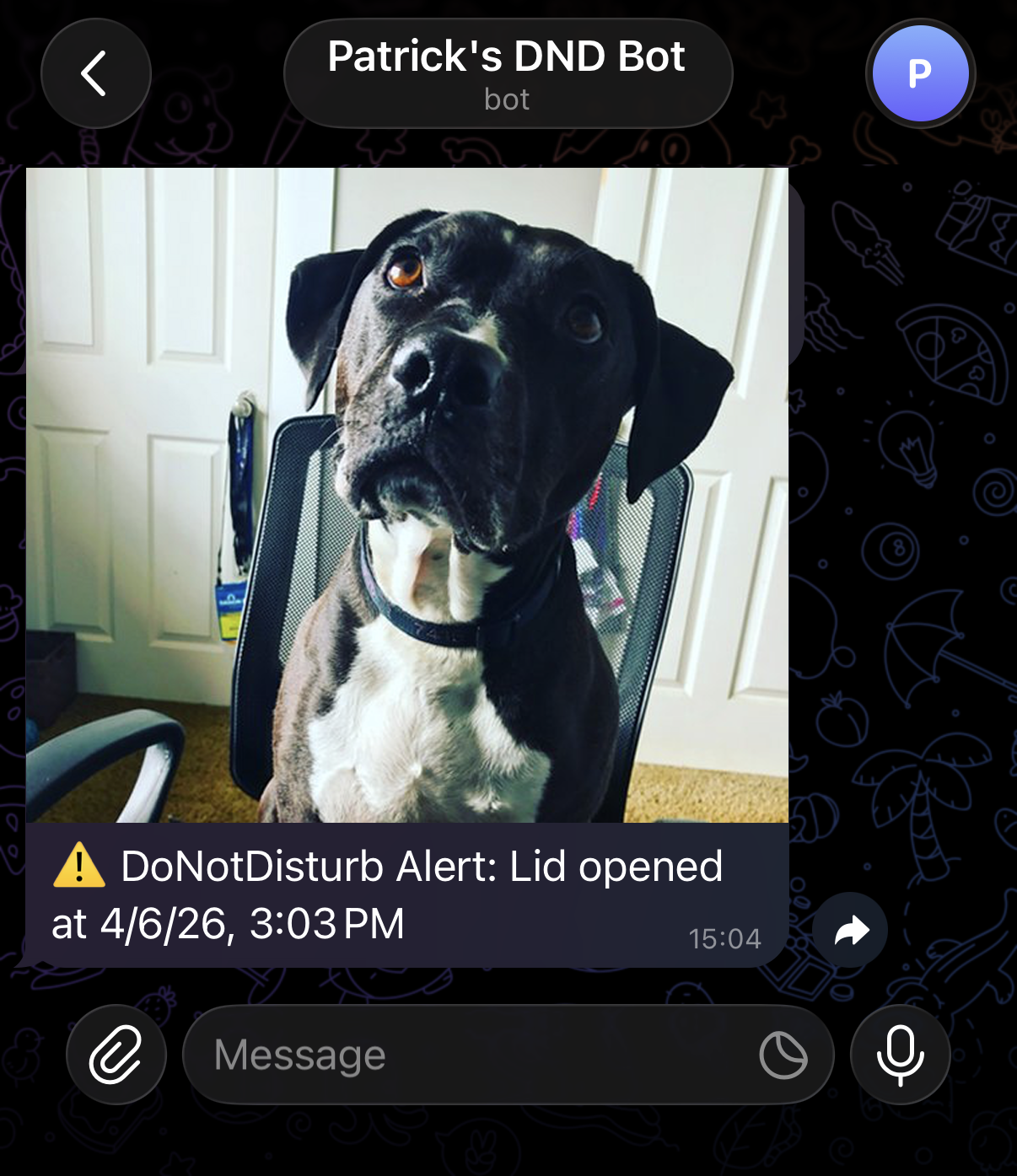

To disable remote alerts, check the "Disable" option. This will remove your Telegram Bot API key from the keychain and stop all remote alerts. To re-enable remote alerts, you'll need to re-enter your Bot API key.
The next tab in the Settings window is "Action" that allows you to further configure how DoNotDisturb should react when it detects any lid open event.
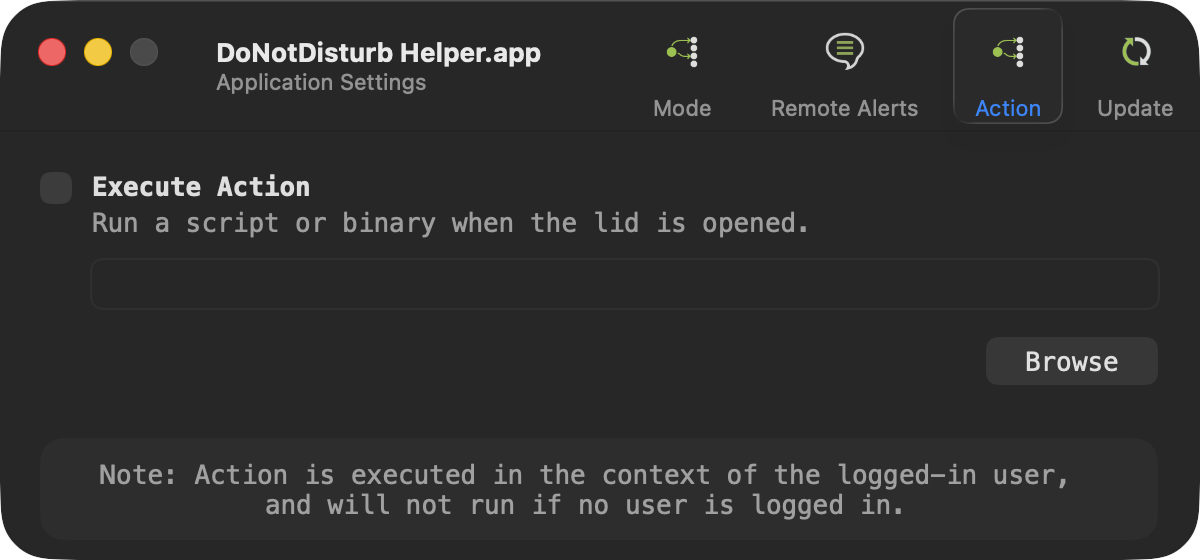
The 'Execute Action' option allows you to specify a command, script, or binary that will be executed upon a lid open event. For example you might have a custom script the performs an action such as sending an alert via email.
Finally, the 'Update' tab, allows one to check for new versions, as well as disable the automatic check for new versions of DoNotDisturb.
Frequently Asked Questions
Q: Will DoNotDisturb detect all "evil maid" attacks?
A: No! It is important to understand that instead of looking for specific types of attacks, DND monitors for lid open events, which are of part of many (but not all!) 'evil maid' or physical attacks. This also means that DND only works with laptops, and requires you to shut your laptop when you leave it unattended.
Q: Do I need to integrate the app with Telegram?
A: No. Telegram integration is completely optional and disabled by default. It is, however, the mechanism DoNotDisturb uses to deliver remote alerts to your mobile device, should you choose to enable it.
Q: I found a bug (or issue) with DoNotDisturb. Can you fix it?
A: Sure! Please submit an issue on the project's Github Page, and I'll try get to it ASAP.
Want to support DoNotDisturb? ...you can via my patreon page!